
 Write and draw
 Capture meetings
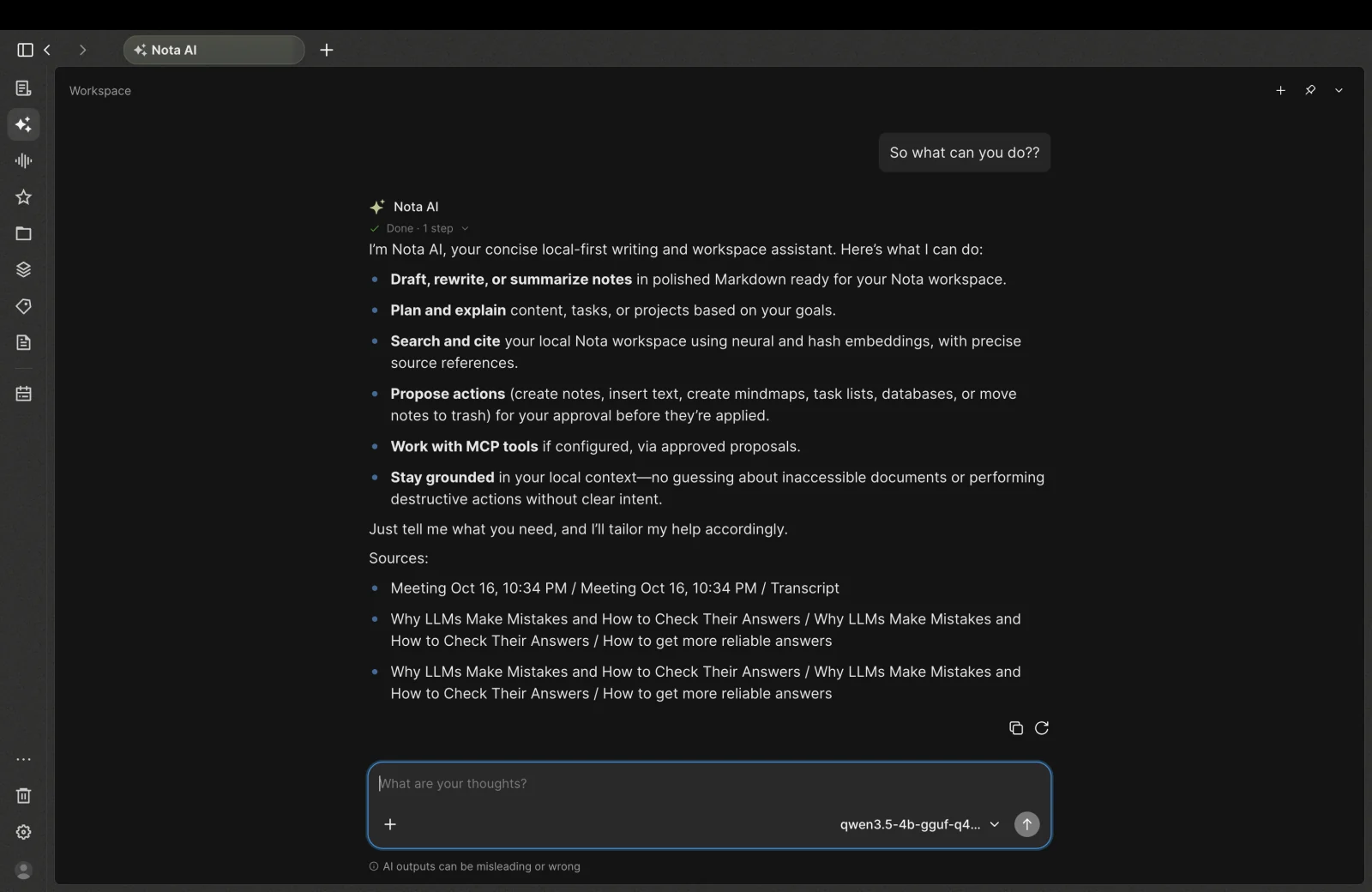
 Ask your workspace
Meeting capture
Ready
Product sync
“Let’s keep the decision next to the conversation, so we can return to the source later.”
 Nota
Download
Nota
Download
Write, sketch, capture conversations, and find answers
with local AI. One workspace on your device.
Available now for Apple-silicon Macs and Windows. No account required.
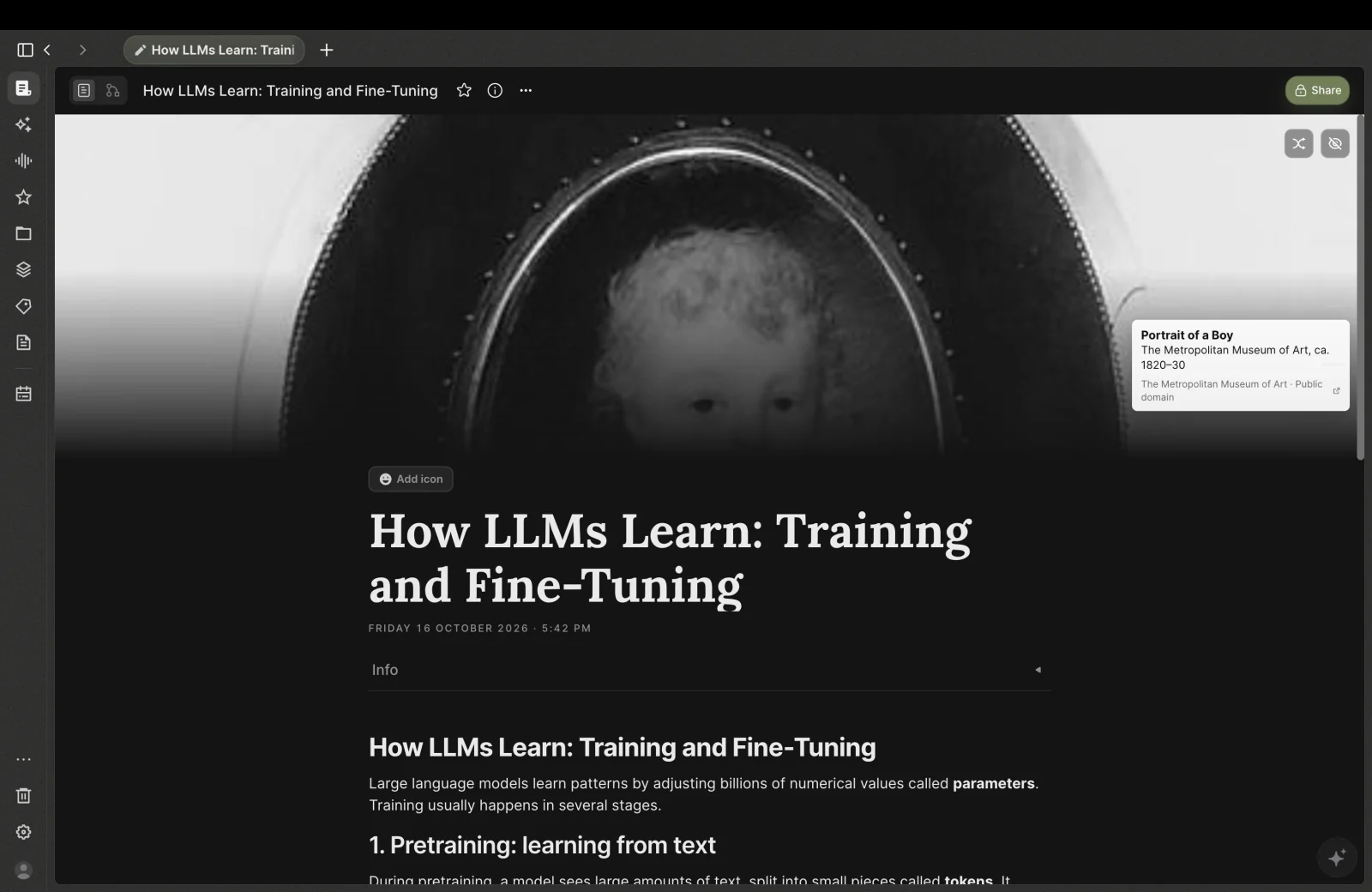
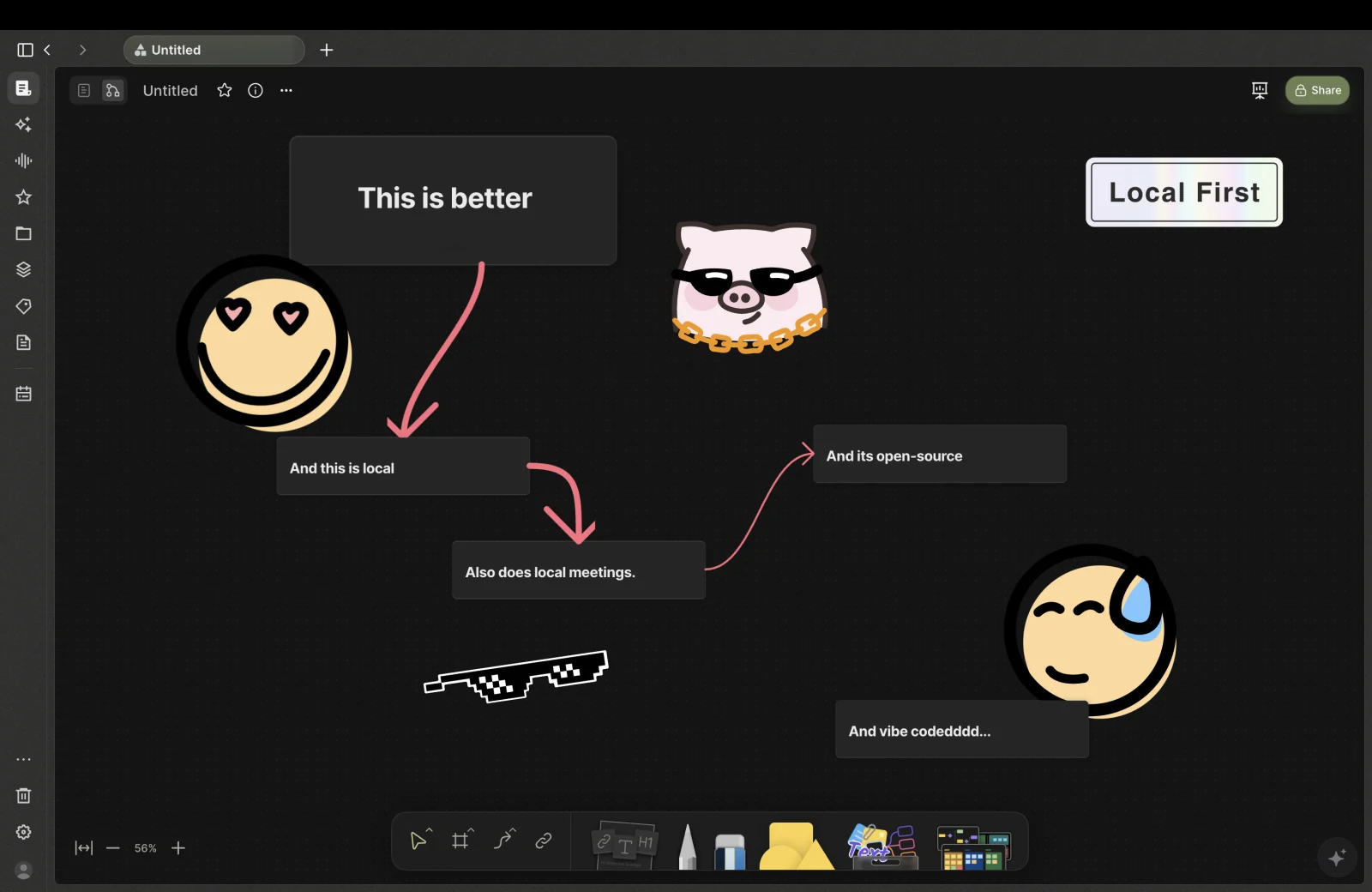
Notes & canvas
Write a page. Sketch a connection. Move between notes and canvas without moving your ideas elsewhere.
Meetings
Capture audio locally, follow the transcript, and turn
the conversation into editable notes.
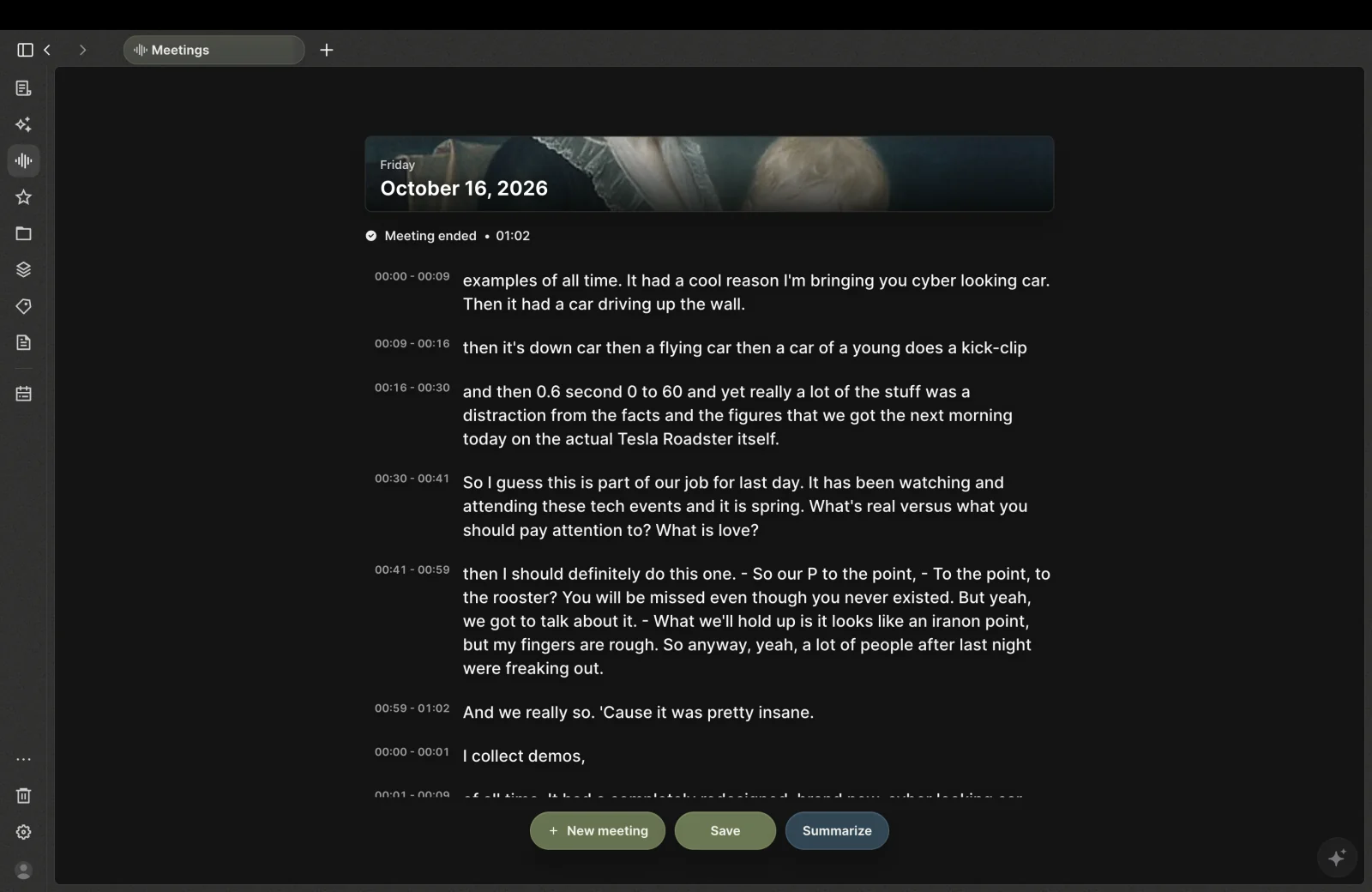
Keep the transcript, summary, decisions, and next steps in your workspace.
Recording requires permissions and model setup.
A block for the conversation
Drop a capture card beside your notes. The recording, transcript, decisions, and next steps stay together on your canvas.
“Let’s keep the decision next to the conversation, so we can return to the source later.”
Keep the first-run setup focused on the essentials.
From 00:18Build the capture block into the workspace canvas.
Open in notesDemo preview. Meeting capture may require operating-system permissions and a speech model.
Nota AI
Find answers across your workspace, with sources you can return to.
Local AI after model setup. Your own cloud provider keys, only if you choose.
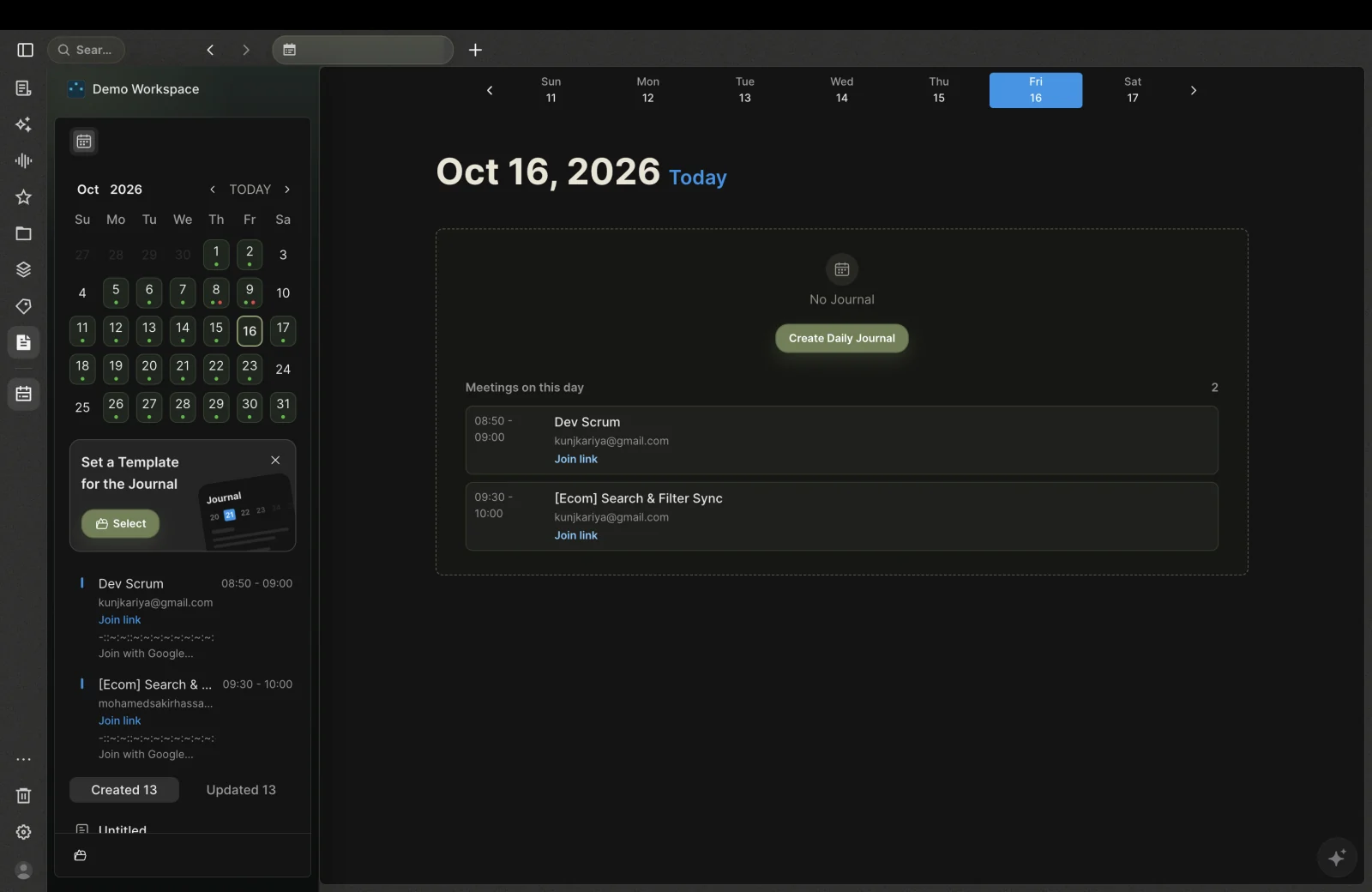
Calendar
See daily notes and meetings together in a week view, so plans and conversations stay connected.

Your notes and meeting content stay in your local workspace. No account needed to start.

Optional online backup in your own Google Drive. Nota works offline without it. Connect only when you want it.

Import notes from Markdown, Notion, and CSV. Export your work when you want to take it elsewhere.

Yes. Writing, sketching, and reopening your notes and whiteboards all work with no connection, because everything is stored on your Mac. Online backup is optional: connect your own Google Drive and Nota syncs when you are online. Local AI works after you install its models, and the initial model downloads need an internet connection.
No. Connecting Google is optional and only used for online backup to your own Drive.
Yes. Use your own provider keys when you choose. Hosted providers need internet access and receive the context you send them.
Download the current installer for Apple-silicon Macs or Windows (x64) from the download page. For release notes and installer files, visit GitHub Releases. Linux and Intel Mac installers are not currently published.
Notes, canvas, meetings, and local AI. Together in Nota.
DownloadVersion 0.1.9 for macOS (Apple silicon) and Windows (x64). Linux is coming.